How WF1 works
A short introduction to the ideas behind the system, told through its sales use case — what each record means, how a deal moves from first contact to a paid order, and who does what. The full step-by-step playbook is at the end.
Eight records, connected to each other
Everything in WF1 is one of a few kinds of record. Each one links to the others, so a quotation always knows its customer and deal, and every conversation stays attached to the work it moved forward.
Company
A customer or prospect organisation. Its lifecycle moves from Target to Lead, Prospect and Customer.
Contact
A person you work with. One contact can belong to several companies.
Deal
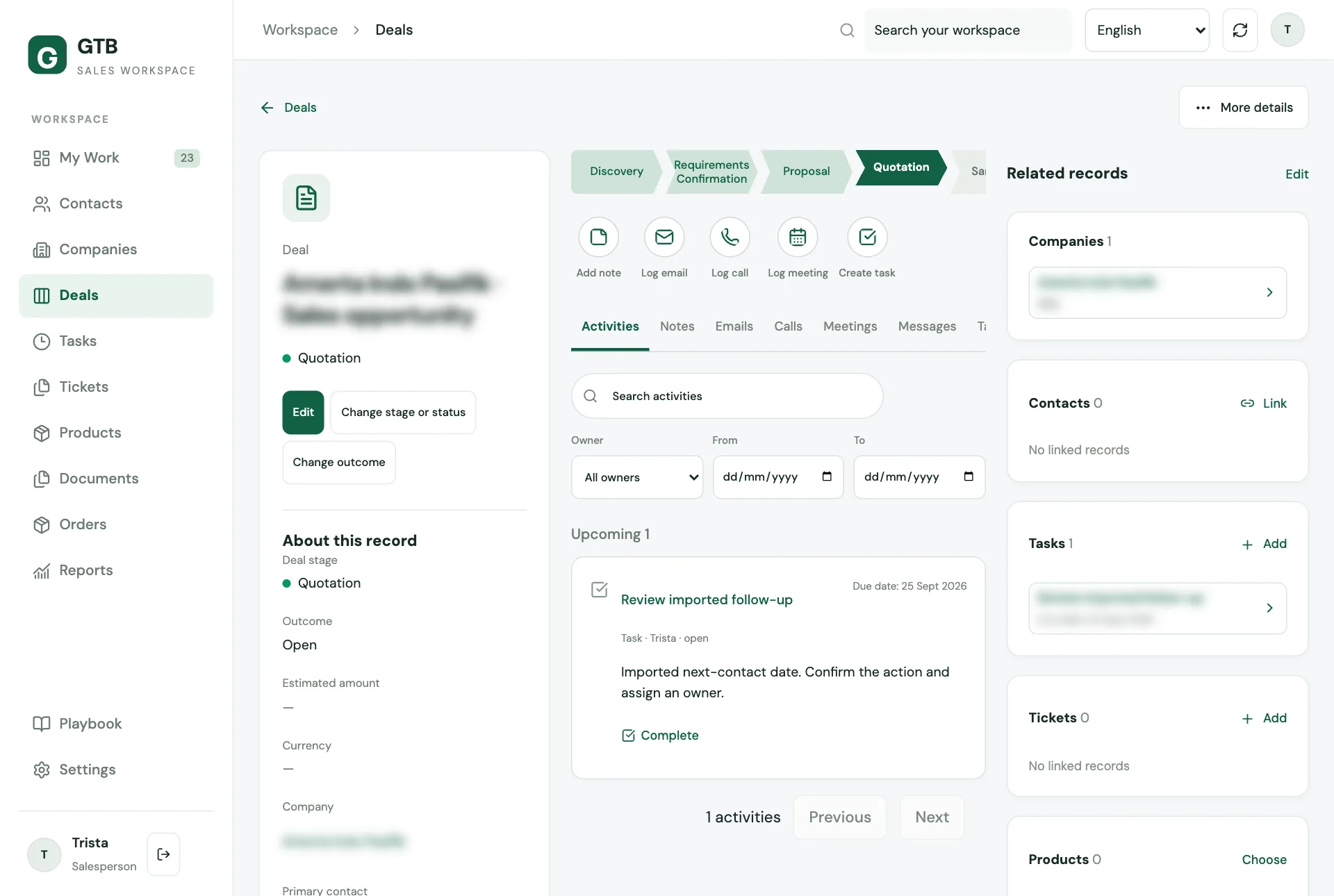
One customer opportunity — from first conversation to a confirmed order — tracked through six stages.
Activity
A logged call, email, meeting or message. Activities keep a deal from going quiet.
Task
A follow-up with a due date. Open tasks appear in the owner’s My Work.
Document
An RFQ, quotation (GQ), pro forma invoice (PI) or invoice (IV), with controlled revisions.
Order
A customer commitment created from an accepted quotation or PI.
Payment
A receipt recorded against an order and verified by a manager.
Six stages, each with clear evidence
A deal can only move into a stage once the evidence for it is recorded. That keeps the board honest: a deal in Sampling really has an accepted quotation behind it.
- 1DiscoveryTo enter
Every new deal starts here.
- 2RequirementsTo enter
Target market, customer objectives, and a budget (or a note that it is uncertain).
- 3ProposalTo enter
An identified product, customer acceptance of the direction, regulatory and R&D feasibility reviews.
- 4QuotationTo enter
A current accepted quotation with MOQ and terms.
- 5SamplingTo enter
An accepted formula sample, confirmed cost and lead time.
- 6Trial orderTo enter
A confirmed order with verified funding and a production schedule.
Five habits that keep every deal moving
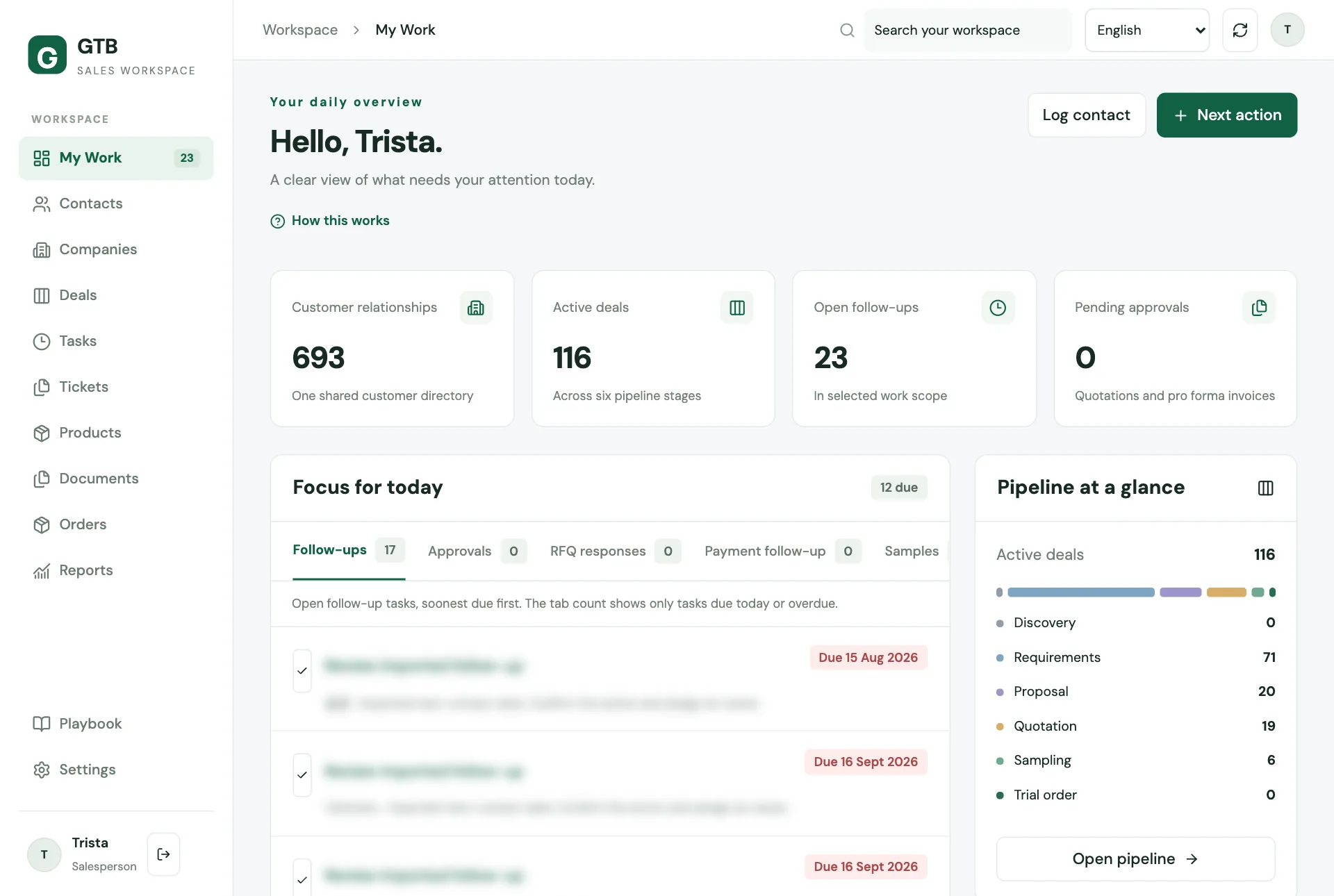
My Work gathers everything that needs you into queues. Work through them with a simple loop:
- 1Check My Work
Start with Follow-ups due today, then glance at Inactivity and Blockers.
- 2Talk to the customer
Call, email, meet or message — whatever moves the deal forward.
- 3Log it on the deal
Record what was said and who you spoke with. It takes seconds.
- 4Schedule the next step
Add a follow-up task in the same form, so nothing depends on memory.
- 5Advance the stage
When the evidence is in, move the deal to its next stage.
Every commercial document follows the same path
Documents are revision-controlled. A salesperson prepares and sends; a manager approves and verifies money. Each step is recorded, so anyone can see where a quotation stands.
- 1DraftSalesperson
- 2Submit for approvalSalesperson
- 3Approve or returnManager
- 4IssueSalesperson
- 5Record sendingSalesperson
- 6Record acceptanceSalesperson
- 7Create orderSalesperson
- 8Record & verify paymentSales → Manager
Three roles, one shared workspace
Salesperson
Owns customer relationships and deals day to day.
- Works from My Work
- Logs every customer contact
- Moves deals through the pipeline
- Prepares and sends quotations
- Records customer payments
Manager
Keeps the team’s pipeline healthy and controls commercial risk.
- Sees the whole team’s queues
- Approves or returns quotations and PIs
- Verifies payments
- Grants stage exceptions with evidence
- Invites teammates and restores access
Admin
Looks after the workspace itself.
- Manages teams and roles
- Configures stages and labels
- Approves the customer document template
- Reviews the audit trail
The step-by-step playbook
The same guide your team sees inside the workspace. Open any section to read it.
1Getting startedSign in, find your way around, and switch language.
- Sign in at the login page with your work email and password.
- Forgot your password or have a new invitation? Ask your manager or an admin for an access link. Open it (or choose Accept an invitation or recover access on the login page) and set a new password. Links work once only.
- Find your way around. The sidebar holds every screen: My Work, Contacts, Companies, Deals, Tasks, Tickets, Products, Documents, Orders and Reports. On a phone, use the bottom bar and tap More for the rest.
- Search anything from the search box at the top: customer names, aliases, products and notes.
- Switch language with the language menu in the top bar (English / 繁體中文). Your choice is remembered on this device.
Tip: Press Refresh in the top bar if a colleague just changed something and you don't see it yet.
2Your daily routineStart every day on My Work and clear what needs attention.
My Work is your home screen. The Focus for today panel groups everything that needs you into queues. Tasks is always there; the other queues appear only when they hold something for you:
| Queue | What it shows | What to do |
|---|---|---|
| Tasks | Your open tasks, soonest due first. The tab count shows only tasks due today or overdue. | Do the task, then tick it off. |
| Approvals | Quotations and pro forma invoices waiting for manager approval. | Wait for your manager, or remind them. |
| RFQ responses | Issued RFQs past their response date with unanswered lines. | Chase the supplier. |
| Payment follow-up | Orders with a payment that is due and not fully received. | Contact the customer about payment. |
| Samples | Samples still waiting for customer feedback. | Ask the customer for feedback. |
| Blockers | Open deals with an unresolved blocker, and work held up by an unfinished record it depends on. | Resolve or escalate the blocker. |
| Inactivity | Open deals with no customer contact logged recently (14 days by default). | Log a call, email or meeting on the deal. |
A good daily rhythm
- Open Tasks and work from the top.
- When a task is done, click the ✓ next to it. Write what happened and, if needed, schedule the next follow-up in the same step.
- Check Blockers, and Inactivity if you work deals, so nothing goes quiet.
- Use Log contact under Quick actions to record a conversation, or Next action to add a new task.
New mentions, comments and assignments arrive under the Notifications bell in the top bar.
Tip: Items marked Imported came from the old spreadsheets and have no contact logged in the CRM yet. Logging your next contact clears the flag.
3Adding a new customerCompany first, then its people, then the deal.
- Go to Companies and click Add. Type the company name. If a similar company already exists, the CRM warns you — open the existing one instead of creating a duplicate.
- Fill in what you know: country / region, source, website, phone, notes. You can complete the rest later.
- On the company page, add the Contacts you work with (name, job title, email, phone). A contact can belong to more than one company.
- When there is a real opportunity, create a Deal from the company page. The deal starts at the first pipeline stage.
- Log your first conversation right away (see Logging a customer contact).
Customer lifecycle — companies and contacts move through: Target → Lead → Prospect → Customer. Update it as the relationship grows.
Tip: Every new record opens right after you create it, so you can keep going without searching for it.
4Logging a customer contactRecord every call, email, meeting and message on the deal.
- Open the deal (or company / contact) you talked about.
- Click Log call, Log email, Log meeting or Log message.
- Write what was discussed in Notes and pick the contact you spoke with. The title fills itself in (for example Call with Jane Chen).
- Talked to someone new? Click Someone new? Add them as a contact — the CRM creates the contact at this company, adds them to the deal and logs the activity in one go.
- Tick Schedule a follow-up task to set your next step (due in 3 days by default — change it as needed).
- Save. The activity appears on the record's timeline.
Why it matters: a deal with no customer contact logged for 14 days appears in the Inactivity queue for you and your manager. Logging a call, email or meeting on the deal clears it.
Tip: From My Work, Log contact lets you record a conversation without opening the record first.
5Moving a deal through the pipelineSix stages, each with clear entry requirements.
Every deal moves through six stages. Before a deal can enter a stage, the CRM checks that the evidence is recorded:
| Stage | Required before entering |
|---|---|
| Discovery | — (every new deal starts here) |
| Requirements | Target market, customer objectives, and a budget (or a note that the budget is still uncertain) |
| Proposal | Identified product or offering, customer acceptance of the direction, and regulatory and R&D feasibility reviews with evidence |
| Quotation | A current accepted quotation (MOQ and terms) |
| Sampling | Customer acceptance of the current formula sample, cost confirmation and lead time |
| Trial order | A confirmed order with verified funding, and a production schedule |
How to move a deal
- Open the deal. The stage path at the top shows where it is.
- Click the next stage (or Change stage or status). The CRM lists anything still missing.
- Fill in the missing fields on the deal, then try again.
Outcomes — use Change outcome when a deal stops moving forward:
- On hold — requires a hold review date, so it comes back to you.
- Won, Lost (record the loss reason), Cancelled, Inactive.
Tip: Stage names can be customised by your admin, so labels may differ slightly from this guide.
6Linking and unlinking recordsKeep people, companies and deals connected correctly.
- On a record page, click Link in a related section to attach an existing record:
- a contact to a company (the contact now also works with that company),
- a company to a contact,
- a contact to a deal — the first contact becomes the primary contact, later ones are participants.
- To remove a connection, click the unlink icon on the related card and confirm. Nothing is deleted — only the connection is removed.
- If you unlink a deal's primary contact, the next participant becomes primary.
- A contact's primary company cannot be unlinked. Change the primary company on the contact first.
7Quotations and documentsFrom draft to accepted quotation, with manager approval.
Document types: RFQ (request for quotation to suppliers), GQ (quotation to the customer), PI (pro forma invoice) and IV (invoice).
The quotation flow
- Create a document from Documents or from the company page. It starts as a draft. Add lines, currency, payment and delivery terms, and the valid-until date.
- Submit for approval. Your manager sees it in their Approvals queue.
- Your manager either Approves it or Returns it with comments — fix and submit again.
- Issue the approved revision. It receives its official number.
- Record sending — the date and channel you sent it to the customer.
- When the customer agrees, Record acceptance with the date and evidence (for example their email). Only an issued, unexpired GQ or PI can be accepted.
- From an accepted document, Create order.
Need changes after issuing? Create a New revision — the old one is kept as superseded.
Legacy documents were imported from the historical ledger. They show a notice that quantities and prices may be incomplete. You can edit them to fill in the gaps.
8Orders and paymentsTrack customer commitments until they are paid.
- Orders are created from an accepted quotation or PI (Create order).
- When the customer pays, open the order and click Record receipt: amount remitted, bank fee, received date, payment reference and evidence.
- A manager then Verifies payment. Until then the receipt shows as unverified.
- Use Handoff & milestones to record production handoff and delivery milestones.
- Orders with a payment that is due and not fully received appear in the Payment follow-up queue on My Work.
Tip: The order page shows the order total, verified receipts and the outstanding balance at a glance.
9Samples, tickets and productsThe supporting records around a deal.
- Samples — record each sample you send (shipped date, recipient, shipping method, tracking reference) and the feedback due date. Samples without feedback appear in the Samples queue.
- Tickets — use for customer or internal requests that need tracking (priority: low, normal, high, urgent). Move the status as work progresses and write a resolution when you close it.
- Products — the catalogue and customer-specific products. Link the product to the deal so everyone knows what is being developed.
- Tasks — every follow-up lives here. Statuses: not started, in progress, waiting, completed.
10Finding and reportingSearch, filter, save views and export.
- Search from the top bar finds customers, aliases, products and notes.
- In any list (Contacts, Companies, Deals…), switch between Table and Board, filter by owner or status, and Save view to reuse your filters.
- Export downloads the current list as CSV.
- Import adds records from a CSV or XLSX file (up to 5 MB and 200 rows). Review the preview before confirming.
- Reports shows the pipeline at a glance, operational health and loss reasons.
11For managersReview your team, approve documents and manage access.Managers
- Team view of My Work — switch My work to My team (admins: All teams) to see every queue for the people you manage.
- Approvals — open each quotation or PI in the Approvals queue. Approve it, or Return it with a clear reason.
- Payments — Verify payment on receipts your team records.
- Stage exceptions — when a deal must move forward without the usual evidence, tick Manager exception in the stage dialog and record the evidence.
- Needs review — imported deals without a confirmed stage wait here. Assign an owner and a stage.
- Team page — invite salespeople, create access-recovery links, and activate or deactivate accounts. Links are single-use and are not emailed: send them yourself.
- Reports — review pipeline health and loss reasons with the team each week.
12GlossaryThe words you will see across the CRM.
| Term | Meaning |
|---|---|
| Deal | A customer opportunity, from first contact to a confirmed order |
| Primary contact / participant | The main person on a deal / others involved |
| Next action | The next task you plan for a record |
| Blocker | Something stopping a deal from moving forward |
| RFQ | Request for quotation, sent to suppliers |
| GQ | Quotation sent to the customer |
| PI | Pro forma invoice |
| IV | Invoice |
| Revision | A version of a document; issuing a new one supersedes the old |
| Draft → Submitted → Approved → Issued | The life of a document revision (it may also be Returned, Superseded or Void) |
| Receipt | A customer payment recorded on an order; a manager verifies it |
| Legacy | A document imported from the historical ledger |